Happy Travelers’ Testimonials
- KeriAnn R., Wyckoff, NJ
Happy Travelers’ Testimonials
"Thank you for all the work you did in organize our trip. We had a great time, even the weather was beautiful, spring time. I like very much the hotel ; pretty and well located . The breakfast was very good too. "
- Mercy H., Rego Park, NY
Happy Travelers’ Testimonials
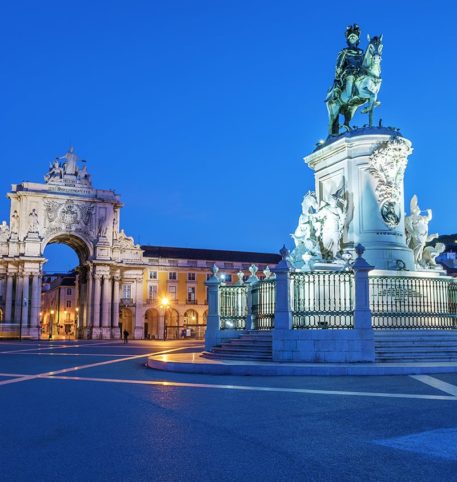
"Our group trip to Portugal was WONDERFUL! Being based in Porto for 4 nights and Lisbon for 5, made us feel like we had a home-base, while every day we would set off in another direction and see totally different things."
- Karen V., Travel Advisor, Chicago, IL
Happy Travelers’ Testimonials
"We cannot thank you and the staff at Homeric Tours enough for the absolutely fabulous time we had on the Greek Islands tour! All the hotels were spectacular with gorgeous accommodations and truly attentive staff..."
- Ann & John M.,Sandwich, MA
Happy Travelers’ Testimonials
"Hello! I just wanted to let you know that our trip to Greece was amazing and all of the Homeric representatives at all of our stops were great!!! So punctual and helpful!"
- Sara C., East Stroudsburg, PA
Happy Travelers’ Testimonials
I hope we get to meet sometime soon so I can fill you in on our wonderful trip. Everything was just great. Alex was incredibly happy with all his arrangements - loved where he stayed and the transportation arranged.
- Barbara K., Buffalo, NY
Happy Travelers’ Testimonials
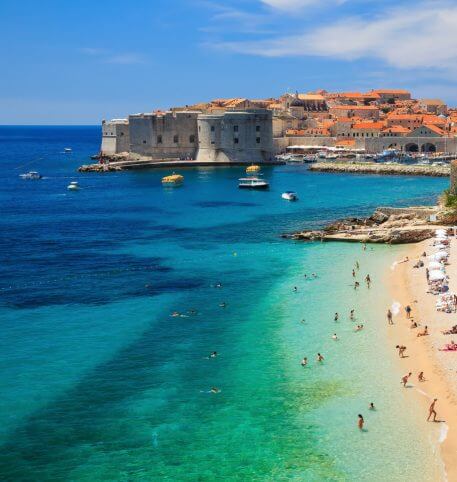
"We did have a most memorable trip to Croatia, Slovenia & Montenegro. We thank you for your help in arranging the details!"
- Charlotte M., Dallas, TX
Happy Travelers’ Testimonials
I want to thank you for all the work you did to make our vacation to Italy so wonderful!
- Donna H & Ed O., New York, NY
Happy Travelers’ Testimonials
"You did a fantastic job putting together my trip to Greece exactly the way I wanted. We had a fantastic time in Crete and in Santorini. My husband got to swim in the hot springs and we ate grilled octopus..."
- Doris & Albert L., Miami, FL
Happy Travelers’ Testimonials
"Thank you so much for making our trip to Greece this year so wonderful. Also thanks to Kostas, Giorgios and Atha for all their helpful suggestions and the personal attention they gave us."
- Eleni S., N. Bellmore, NY
Happy Travelers’ Testimonials
"I wanted to thank you for all your help and attention to detail. My clients had a spectacular time and thanked me over and over. They stayed in Athens at the Grand Bretagne, in Deluxe Acropolis view on butler floor"
- Fred T., Travel Advisor, Western Springs, IL
Happy Travelers’ Testimonials
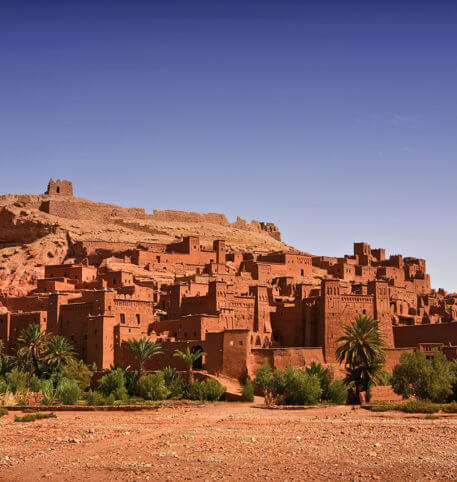
"I just returned from my trip to Morocco. It was a wonderful tour, it exceeded my expectations and I had a really good time. I want to thank Homeric Tours for arranging everything."
- Jerry M., Bridgeport, CT
Happy Travelers’ Testimonials
"We returned from Morocco yesterday evening. Everything was great and we had a wonderful time. We are grateful to Homeric Tours for an impeccably organized trip."
- Loucas & Penny T., New York, NY
Happy Travelers’ Testimonials
"This package was so well planned. We were a family of 6 and all of our needs were met. I would highly recommend this trip. The people at Homeric were very reachable before during and after our trip. Oooopaaaa!!!!"
- Mary Kay H., New York, NY
Happy Travelers’ Testimonials
"I am certainly exhausted from such a magnificent trip. The happiness I feel is so worth it. You helped me fulfill my life's dream of showing my children their roots and heritage."
- Mary P., Pacifica, CA
Happy Travelers’ Testimonials
"My clients had a fabulous time on their trip to Egypt and Israel! In fact, they came in and spent two hours with me detailing the trip. And you were right they were treated like a king and queen in Egypt!"
- Pam L., Travel Professional, Carmichael, CA
Happy Travelers’ Testimonials
"The Artellis have returned from Greece with rave reviews for Homeric! Thank you again, for making me look so good!"
- Pamela W., Travel Advisor, Denver, CO
Happy Travelers’ Testimonials
"My clients have returned from Greece with rave reviews for Homeric! Thank you again, for making me look so good!"
- Pamela W., Travel Professional Denver, CO
Happy Travelers’ Testimonials
"Thanks, Greece was AMAZING!!! The views we got to see were incredible, Homeric was great and the hotels were perfect."
- Patrick & Laurie M., Sicklerville, NJ
Happy Travelers’ Testimonials
"Thanks, Greece was AMAZING!!! The views we got to see were incredible, Homeric was great and the hotels you booked for us were perfect. Athens Plaza was great being right in the city!"
- Patrick and Laurie M., Haddonfield, NJ
Happy Travelers’ Testimonials
"My clients had a wonderful time in Greece. All the Homeric services were excellent. They were extremely happy with the Homeric people in Athens."
- Patty S., Travel Professional, Paramus, NJ
Happy Travelers’ Testimonials
"The trip was fantastic! We loved every minute of it. Homeric Tours was TOP NOTCH! I would highly recommend using them again. On time, very organized, always had someone waiting to pick us up"
- Robert S., Rapid City, SD
Happy Travelers’ Testimonials
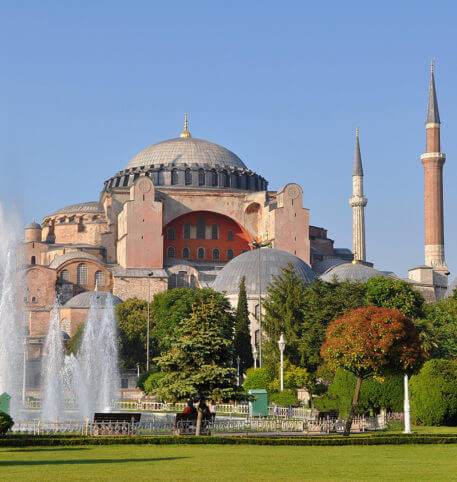
"Thank you so much for the most wonderful accommodation you arranged for us in Greece and Turkey. We truly had the most memorable vacation in these two beautiful countries."
- Arceli and Ismael I., San Francisco, CA
Happy Travelers’ Testimonials
"Hello! I just wanted to let you know that our trip to Greece was amazing and all of the Homeric representatives at all of our stops were great!!! So punctual and helpful!! "
- Sara C., Lancaster, PA
Happy Travelers’ Testimonials
"We had an absolute blast on our trip to Greece! The hotels you chose for me and my 5 kids were incredible and absolutely perfect for our time there. You listened to what we were looking for and made this a dream vacation for all of us."
- Stacey V., Lagrangeville, NY
Happy Travelers’ Testimonials
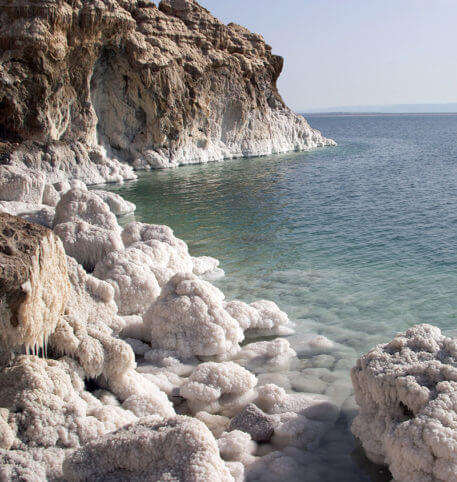
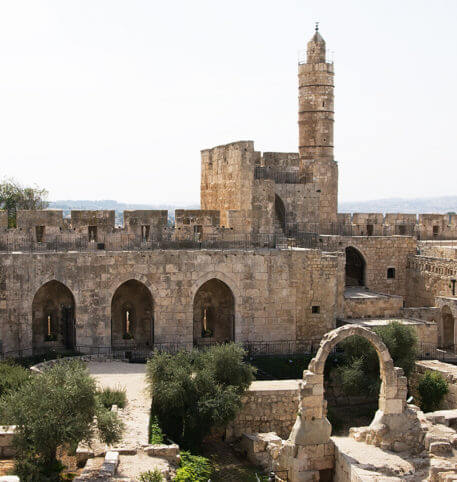
"Words cannot express how much we enjoyed our trip to Israel! The accommodations at all the hotels were top notch, the service was great and the staff was so helpful and the food was delicious..."
- Wendy and Paul H., Lehighton, PA
Happy Travelers’ Testimonials
"The trip to Israel was truly AMAZING....thanks to all yours and HOMERIC TOURS efforts."
- Βesi M., Travel Advisor, Springfield, MA
Happy Travelers’ Testimonials
"Thank you and the rest of the staff at Homeric Tours for your assistance these past 2 weeks. I am new in the travel business and your assistance with the Randy group was invaluable"
- Kenya S., Travel Professional, Brunswick, OH
Happy Travelers’ Testimonials
"My clients just returned from Greece and were so impressed with Homeric. Your staff there in Greece was wonderful.If they go back to Greece, they will only allow me to book Homeric."
- Dorene P. L., Travel Professional, Newburgh, Ny
Happy Travelers’ Testimonials
"The trip was fantastic! We loved every minute of it. Homeric Tours was TOP NOTCH! I would highly recommend using them again. On time, very organized, always had someone waiting to pick us up. "
- Robert S., Rapid City, Sd
Happy Travelers’ Testimonials
"My husband and I would like to inform your travel company of the very efficient, friendly and courteous employees that assisted us with our trip to Greece."
- Charles And Kathleen C., West Springfield, Ma
Happy Travelers’ Testimonials
"We had an absolute blast on our trip to Greece! The hotels you chose for me and my 5 kids were incredible and absolutely perfect for our time there."
- Stacey V., Lagandgeville, Ny
Happy Travelers’ Testimonials
"I am writing to say thank you for your perfect arrangements for our travels to Italy, Poland and Greece. Your efforts are appreciated. I especially want to say thank you for arranging wonderful hotels, in great locations, clean and comfortable."
- Richard And Judi M., Miami, Fl
Happy Travelers’ Testimonials
My client had a wonderful trip to Italy. The Homeric reservations and arrangements were perfect and all the drivers and guides were prompt and courteous.
- Tom C., Travel Professional, Mequon, Wi
Happy Travelers’ Testimonials
Thanks, Greece was AMAZING!!! The views we got to see were incredible, Homeric was great and the hotels were perfect.
- Patrick & Laurie M., Sicklerville, Nj
Happy Travelers’ Testimonials
The trip was handled very well and enjoyed every aspect of it.
- Pat D., Summerville, Sc
Happy Travelers’ Testimonials
You did a fantastic job putting together my trip to Greece exactly the way I wanted. We had a fantastic time in Crete and in Santorini.
- Doris & Albert L., Miami, Fl
Happy Travelers’ Testimonials
We cannot thank you and the staff at Homeric Tours enough for the absolutely fabulous time we had on the Greek Islands tour!
- Ann & John M., Sandwich, Ma
Happy Travelers’ Testimonials
Thank you so much for the most wonderful accommodation you arranged for us in Greece and Turkey.
- Arceli And Ismael I., San Francisco, Ca
Happy Travelers’ Testimonials
The trip was really nice. Sicily is beautiful however very hot.
- Mary And Dennis F., Franklin Square, Ny
Happy Travelers’ Testimonials
I just wanted to share a quick note and let you know that Homeric Egypt did a really great job. I’m glad I decided to choose Egypt as my destination.
- Barbara M., New York, Ny
Happy Travelers’ Testimonials
The trip to Israel was truly AMAZING...thanks to all yours and HOMERIC TOURS efforts.
- Besi M., Travel Consultant, Springfield, Ma
Happy Travelers’ Testimonials
Just a quick note to say that it was a pleasure to work with you all and the trip went smoothly.
- Rebecca D.,Travel Professional Memphis, Tn